If you have ever edited a beautiful video, exported it in high quality, and then uploaded it to WhatsApp only to see the quality become blurry, you are not alone.
WhatsApp automatically compresses videos when you upload them, especially when you post them as a Status or send them normally as a video.
The good news is that you can reduce the amount of quality you lose by exporting your video correctly before uploading it.
In this guide, I’ll show you how to prepare your videos for WhatsApp, including recommended settings for Premiere Pro.
Why Does WhatsApp Reduce Video Quality?
WhatsApp compresses media to reduce file size and make sending and uploading faster.
For example, you may export a video from Premiere Pro at a high bitrate and have a large file. When you upload that same video to WhatsApp Status, WhatsApp may process and compress it again.
This means your original exported video can look much sharper on your computer or phone than the version people see on WhatsApp.
The goal, therefore, isn’t simply to export at the highest possible quality.
The goal is to create a video that is high enough quality while keeping the file size and bitrate reasonable for WhatsApp’s compression.
What Is the Best Video Resolution for WhatsApp Status?
For vertical WhatsApp Status videos, I recommend using:
- Resolution: 1080 × 1920
- Aspect ratio: 9:16
- Frame rate: Match your original footage
- Format: H.264
- Audio: AAC
- Bitrate: Around 8–12 Mbps for most videos
If your original footage is 4K, you don’t necessarily need to upload a 4K file to WhatsApp Status.
Exporting a properly prepared 1080 × 1920 version can give you a good balance between quality and file size.
Best Premiere Pro Export Settings for WhatsApp Status
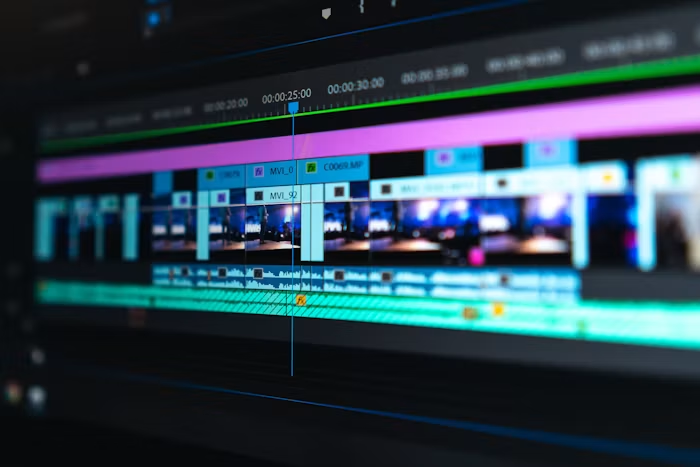
If you edit your video in Adobe Premiere Pro, these are the settings I recommend starting with.
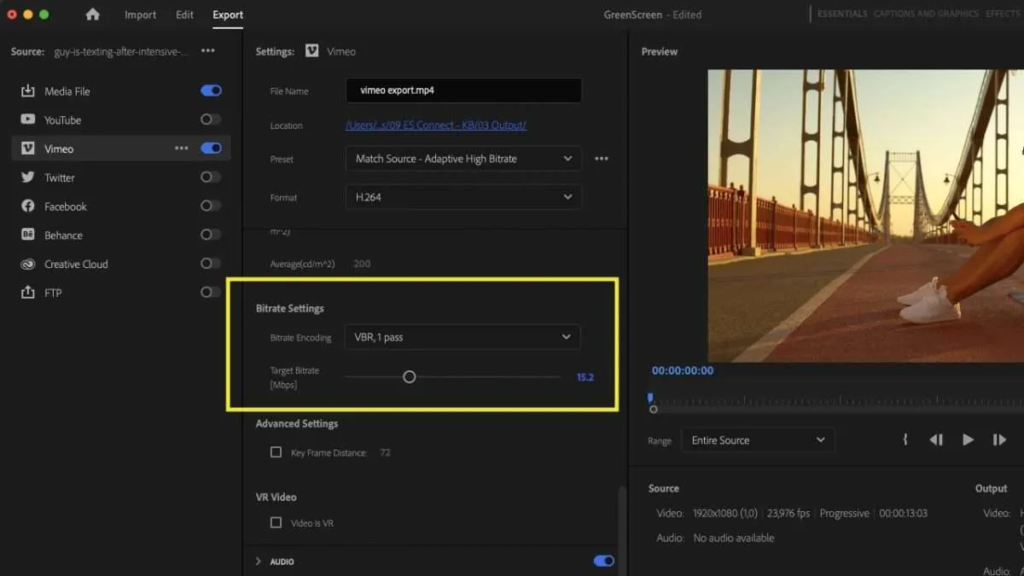
Step 1: Choose H.264
Go to:
File → Export → Media
Under Format, select:
H.264
H.264 is a practical choice because it produces relatively small files while maintaining good image quality.
Step 2: Set the Resolution
For a vertical Status video:
1920 × 1080 footage should become 1080 × 1920.
Make sure your sequence is correctly configured for vertical video before exporting.
Your sequence should look like:
1080 horizontal × 1920 vertical
This gives you the standard 9:16 vertical format.
Step 3: Match Your Frame Rate
Don’t unnecessarily change your frame rate during export.
If you recorded your footage at 25fps, export at 25fps.
If you recorded at 30fps, export at 30fps.
If you recorded at 50fps for slow motion, your final timeline may still be 25fps depending on how you edited the footage.
The important thing is to avoid randomly changing frame rates during export.
Step 4: Use a Reasonable Bitrate
This is one of the most important settings.
For WhatsApp, you don’t need an extremely high bitrate.
A good starting point is:
Target Bitrate: 8–10 Mbps
For footage with lots of movement, fine details, foliage or fast camera movement, you can go slightly higher.
For simple talking-head videos or videos with less movement, you can use a lower bitrate.
There is little benefit in creating an enormous file that WhatsApp is simply going to compress again.
Should You Export at 4K for WhatsApp?
Usually, no.
If your final destination is WhatsApp Status, I would normally export a 1080 × 1920 version.
This is especially useful when your original footage was recorded in 4K.
For example:
Camera recording: 4K
↓
Editing: 4K or appropriate sequence
↓
Final WhatsApp export: 1080 × 1920
↓
Upload: WhatsApp Status
This gives you a manageable file while retaining good detail before WhatsApp performs its own processing.
What About WhatsApp’s HD Option?
WhatsApp has an HD media option that can preserve more quality than the standard upload option.
When available, look for the HD option when sending media.
However, don’t assume that selecting HD means the video will remain identical to your original export.
WhatsApp can still process/compress the video.
Your best approach is to combine:
Good original footage + proper editing + sensible export settings + HD upload when available.
How to Upload a Video to WhatsApp Status With Better Quality
After exporting your video:
- Open WhatsApp.
- Go to the Status section.
- Select your exported video.
- If an HD option is available, select it.
- Preview the video before posting.
- Upload it.
Avoid repeatedly downloading, re-editing and re-uploading the same compressed video.
Every time you create another compressed copy, you can potentially lose additional quality.
Why Your WhatsApp Video May Still Look Blurry
Even if you follow the correct export settings, several things can affect the final result.
1. Your original footage wasn’t sharp
Export settings cannot create detail that wasn’t captured by the camera.
Make sure your footage is properly focused and exposed when shooting.
2. You exported at an unnecessarily low bitrate
Very aggressive compression before WhatsApp processes the video can make the final result worse.
3. Your video has been compressed multiple times
For example:
Camera footage → compressed editing file → exported video → another editing app → WhatsApp.
Try to maintain the highest-quality workflow possible until the final upload.
4. WhatsApp is processing the video
This is one factor you cannot completely control.
Even a high-quality original video may look different after WhatsApp processes it.
5. Your video contains lots of detail
Videos with grass, leaves, crowds, glitter, smoke, fast movement and other complex textures are harder to compress.
This can make compression artifacts more noticeable.
What If You Are Posting a Wedding Video?
Wedding videos are particularly sensitive to compression because they often contain:
- Detailed clothing
- Skin tones
- Hair
- Decorations
- Low-light scenes
- Moving cameras
- Dance scenes
- Confetti
- Fine background details
For a wedding video intended for WhatsApp Status, I would prioritize:
1080 × 1920 + H.264 + sensible bitrate + good original footage.
Don’t try to solve everything by simply increasing the bitrate.
My Recommended WhatsApp Export Settings
For a typical vertical video, start with:
| Setting | Recommendation |
| Format | H.264 |
| Resolution | 1080 × 1920 |
| Aspect Ratio | 9:16 |
| Frame Rate | Match sequence |
| Target Bitrate | 8–10 Mbps |
| Audio | AAC |
| Audio Sample Rate | 48 kHz |
| Audio Bitrate | 256 kbps |
| Profile | High |
| Level | 4.2 |
These aren’t universal settings for every video, but they provide a strong starting point for social-media videos.
Should You Use Maximum Render Quality?
If you’re exporting from a higher-resolution source and scaling down to 1080p, enabling Render at Maximum Depth or Use Maximum Render Quality isn’t automatically necessary for every project.
These options can increase export time considerably.
For a normal WhatsApp Status video, I would prioritize an efficient export rather than making the export unnecessarily heavy.
Final Tip: Keep Your Master File
Don’t overwrite your original edited project with your WhatsApp version.
Keep your high-quality master export separately.
For example:
Wedding_Final_Master_4K.mp4
and
Wedding_WhatsApp_Status_1080x1920.mp4
That way, you can create different versions for Instagram, YouTube, TikTok and WhatsApp without repeatedly compressing the same file.
Final Thoughts
Getting good video quality on WhatsApp isn’t just about exporting at the highest possible resolution.
The better approach is to give WhatsApp a clean, properly encoded video that isn’t unnecessarily huge.
For most vertical WhatsApp Status videos, 1080 × 1920, H.264 and a sensible bitrate around 8–10 Mbps are a good starting point.
And if WhatsApp gives you the option to upload or send the video in HD, use it when appropriate.
If you’re editing in Premiere Pro, you can also create a dedicated WhatsApp export preset so you don’t have to configure these settings every time.
Frequently Asked Questions
Can I upload a 4K video to WhatsApp?
Yes, but if your main goal is WhatsApp Status, exporting a properly prepared 1080 × 1920 version is often more practical.
What is the best format for WhatsApp videos?
H.264 MP4 is a practical choice for WhatsApp because it provides good quality at a manageable file size.
What bitrate should I use for WhatsApp Status?
Around 8–10 Mbps is a good starting point for 1080 × 1920 videos. You can adjust it depending on the amount of movement and detail in your footage.
Why does my video look sharp in my gallery but blurry on WhatsApp?
WhatsApp can compress uploaded videos. Your phone gallery is showing the original file, while WhatsApp may be showing a processed version.
Does WhatsApp HD completely stop compression?
No. HD can preserve more quality than the standard option, but the video may still be processed.
Should I export my WhatsApp video at 60fps?
Only if your final project is intended to be 60fps and your original footage/workflow supports it. Don’t change to 60fps simply because you think it will automatically improve quality.
About ZEEDAXZ
ZEEDAXZ shares practical photography, videography, camera, editing and creative-production tips for photographers and videographers, with a focus on real-world workflows and equipment.